Help with MedOne Playlists
What is a MedOne Playlist?
MedOne playlists allow you to assemble your favorite content into a collection where it can be easily viewed. Content can be added from MedOne, uploaded from personal files, or link to other pages. Your playlist will default to private, or you can choose to share it with other MedOne users. Browse more help topics below:
Creating a MedOne Playlist
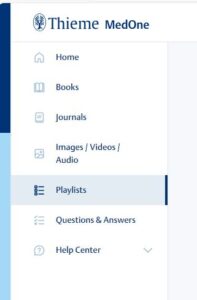
Log in to MedOne with your username and password. Click the “Playlists” link in the left navigation menu.
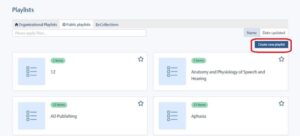
Click “Create new playlist”, and you will be prompted to enter a name and related subject area for your new playlist.
Adding content to a MedOne Playlist
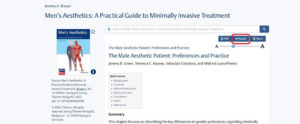
You can add content to your MedOne playlist by clicking the “Playlist” button that is displayed in the right upper corner of content pages or star icon next to book covers. You can add an entire book, a book chapter, a journal issue or article, images/video/audio or another playlist.
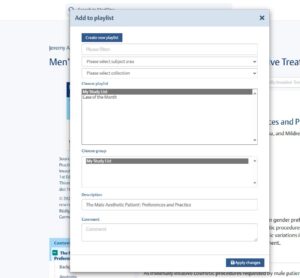
Select the MedOne playlist (and the group within the playlist, if applicable) that you wish to add content and click apply changes.
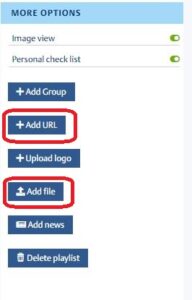
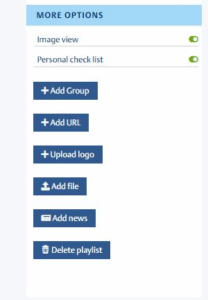
You can link webpages (+Add URL) or add your personal files (+Add file) from within the playlist by using the respective buttons in the “More Options” area.
Editing a MedOne playlist
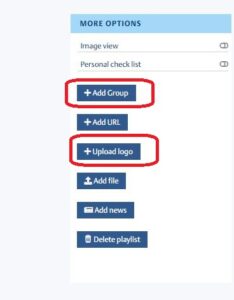
You have the following customization options in the “More Options” area:
- +Add Group: Organize your playlist entries in different groups.
- +Upload logo: Upload an image to personalize your playlist with a logo. Be sure that you have all the rights to do so.
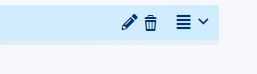
In the main playlist area, you will find some more editing tools:
Choosing different views for a MedOne playlist
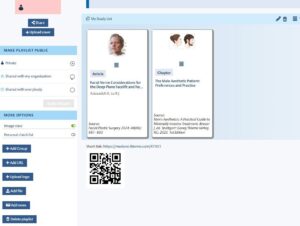
By default, a MedOne playlist is displayed in list view. If you prefer an image view, click the respective toggle switch in the “More Options” area.
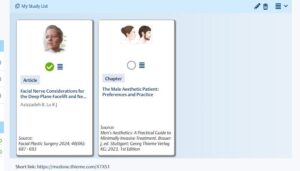
You also have the option to view a MedOne playlist as a personal check list. This way, you can check all articles/chapters that you have already read.
Setting a MedOne playlist as private or public
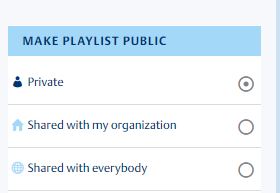
By default, your MedOne playlist is set to private. This means only you will see it. You can share it with other members of your institution or all MedOne users anywhere (public) by clicking the appropriate setting.
Deleting a MedOne playlist
Your MedOne playlist can be deleted by you at any time by clicking the “Delete playlist” button in the “More Options” area. Please note: We are not able to recover a playlist that has been deleted. So be sure this is what you want.
Subscribe to another MedOne Playlist
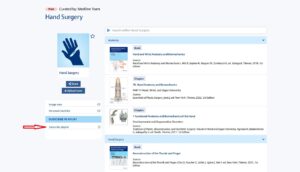
You can to subscribe to a public MedOne playlist by clicking the star next to a playlist cover or by checking the option in the left menu within the playlist.
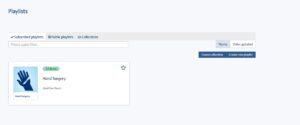
You will see all MedOne playlists you have subscribed to under the tab “Subscribed playlist”.